Preparations
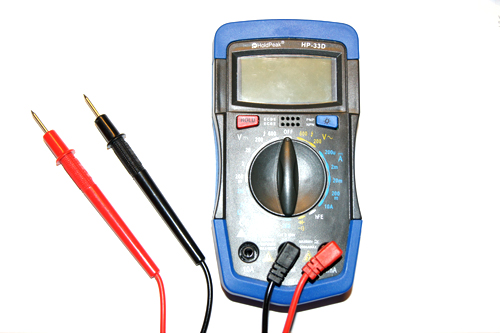
If you have never soldered before, I recommend taking a look at the comic “Soldering is Easy” (see the download page). The following tools are needed to assemble the Kamikaze Louie kit.
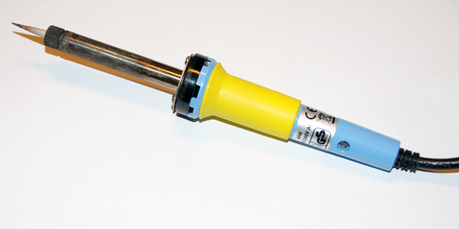
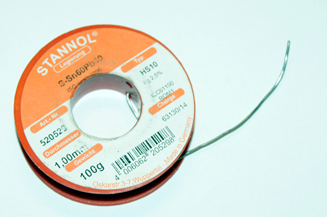
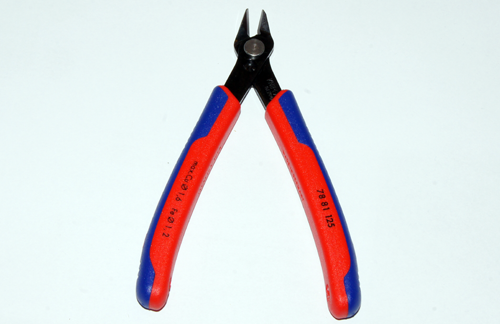
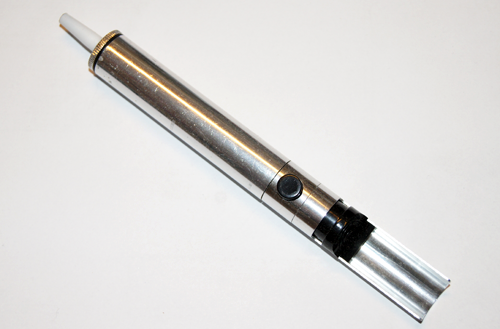

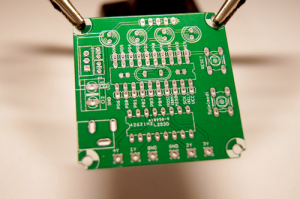
The PCB is held in the soldering aid
to make populating it easier.
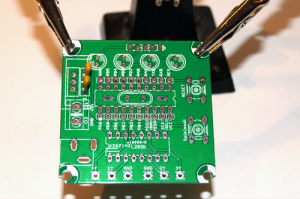
Push the capacitors into the holes provided
on the PCB and bend the legs
of the capacitors slightly outwards
so that they can no longer fall out.
With the capacitors it doesn’t matter which
way round you insert them into the PCB.
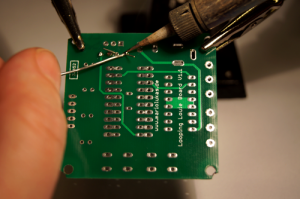
Then turn the PCB over and solder the capacitors in place. After soldering, the protruding ends can be trimmed off cleanly at the solder joints with the side cutters.
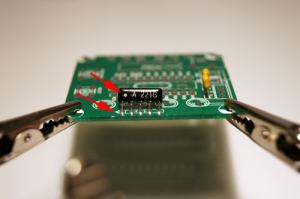
When inserting the resistor network, make sure it goes into the PCB the right way round. One pin on the component is marked with a dot (GND). This pin has to be on the same side as the corresponding marking on the PCB.
(see the arrows in the picture)
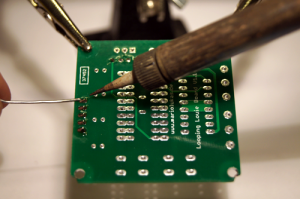
Turn the PCB over and solder the resistor network in place. Snip off the protruding ends if necessary.
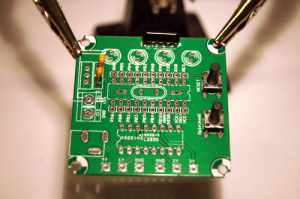
Push the buttons into their designated positions on the PCB.
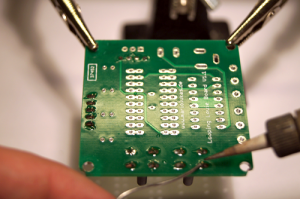
Turn the PCB over and solder the buttons in place.
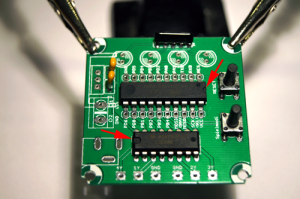
Next, push the two sockets for the L293D motor driver and the ATiny2313 microcontroller into their designated positions on the PCB. Here, too, you need to pay attention to the correct orientation. The ICs as well as the sockets have a notch on one side, which has to point towards the marking on the PCB (see picture).
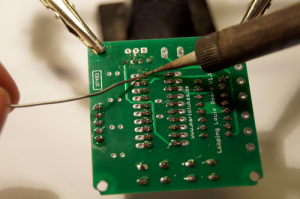
Turn the PCB over and then solder the sockets. After that, carefully push the ICs into the sockets. Take care not to bend the legs of the ICs. The ICs should be seated properly in the sockets.
NOTE: Since January 13, 2012, sockets are included with every kit.
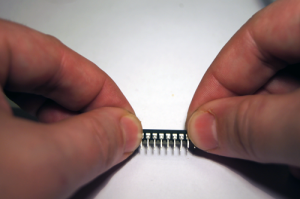
For the ICs to fit into the sockets, their legs may need to be bent into shape a little. To do this, rest one side of the IC on a flat surface as shown in the picture and, with gentle pressure, push all the legs on that side into shape at the same time.
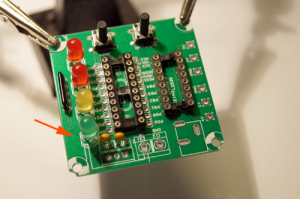
Push the LEDs into their designated positions on the PCB. On the back, bend the legs of the LEDs slightly outwards. Make sure that every LED is mounted the right way round. The rule here: the cathode side has a flat edge. The PCB also has a flat side on the LED markings.
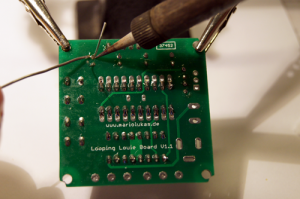
Turn the PCB over and solder the LEDs in place. Then trim off the protruding legs cleanly at the solder joint.
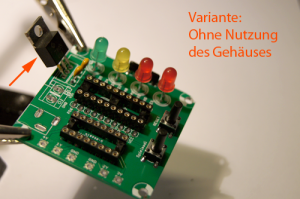
There are two options here. On the one hand, the component can be mounted on the front. However, if you want to use the enclosure from my shop, it is better, for reasons of space, to solder the voltage regulator to the back of the PCB. Again, pay attention to the polarity. The picture shows the variant without the enclosure from the shop.
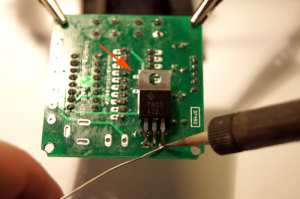
Turn the PCB over and solder the voltage regulator in place. Trim off the protruding legs cleanly at the solder joints.
NOTE: The picture shows the second variant, because I describe in another tutorial how the PCB is mounted in the matching enclosure.
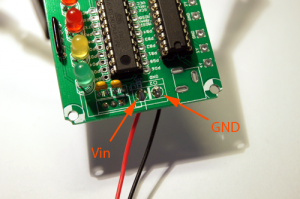
Last of all, the battery clip has to be soldered on. Solder the black wire of the battery clip to GND on the PCB. Solder the red wire to the spot marked Vin on the PCB.
TIP:For very long game nights, a 9V power supply
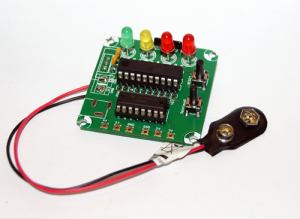
If you followed all the steps correctly, your kit should now look similar to the picture and be ready for action.
There are several ways to connect the kit to the game. The simplest one is to solder two wires directly to the game. Much better, however, is a different solution that I came up with some time ago. It requires no soldering on the game itself, and the kit can be taken along anywhere and connected to any Looping Louie.
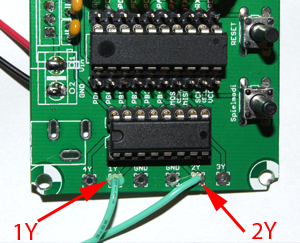
First, two wires have to be soldered to the motor outputs of the board. The two outputs you need are 1Y and 2Y, as marked in the picture. The negative lead for the motor has to be soldered to 1Y and the positive lead to 2Y.
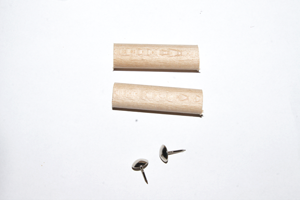
To connect the wires conveniently, it’s best to build yourself a kind of dummy battery. For my dummy I simply used a 14–15 mm round dowel from the hardware store. I sawed off two pieces of it, each 50 mm long. For the contacts I use the nails shown in the picture. It might work with thumbtacks as well, though. The only important thing is that the nails you use are electrically conductive.
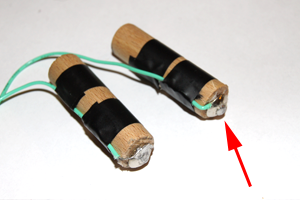
The nails are hammered into the two sawn-off pieces of dowel. Then the other two wire ends are soldered to the nails. A drop of solder should be added to the positive (plus) contact to ensure better contact in the battery compartment. I additionally secured the wires to the dowels with electrical tape so that they don’t tear off at the contacts.
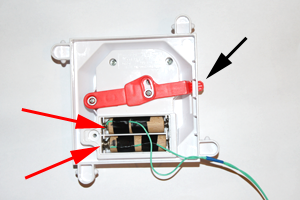
Once everything is ready, the dummies can be placed in the battery compartment. It is essential to pay attention to the orientation here, because otherwise a short circuit occurs and components on the board could be damaged. The black arrow marks the on/off switch of the Looping Louie. The two red arrows point to the contacts on the dummy battery. So the contacts have to point in exactly the opposite direction from the switch. Of course you also need to make sure that the polarity is correct.
The game can now be used. The on/off switch can still be used to switch the motor on and off.
NOTE: The circuit itself is, of course, not switched off by flipping the switch. So after you finish playing it is advisable to remove the battery again, or to solder a switch between the board and the battery clip.
After the battery is inserted, the game is in normal mode. In this mode Louie flies about as fast as he does without the Kamikaze Louie kit. You can then use the game mode button to choose between the following game modes:
- Mode 1: Normal speed
- Mode 2: Double speed
- Mode 3: Random speed
- Mode 4: Random speed with random stops and/or changes of direction
Each press of the button switches the game mode. If mode 4 is active, pressing the button again switches back to the first mode, and so on. One LED lights up for each game mode, so the current game mode is always displayed.
The reset button restarts the microcontroller.